


iPadOS 26.3.1 Update Adds Apple Studio Display Support for Apple iPad
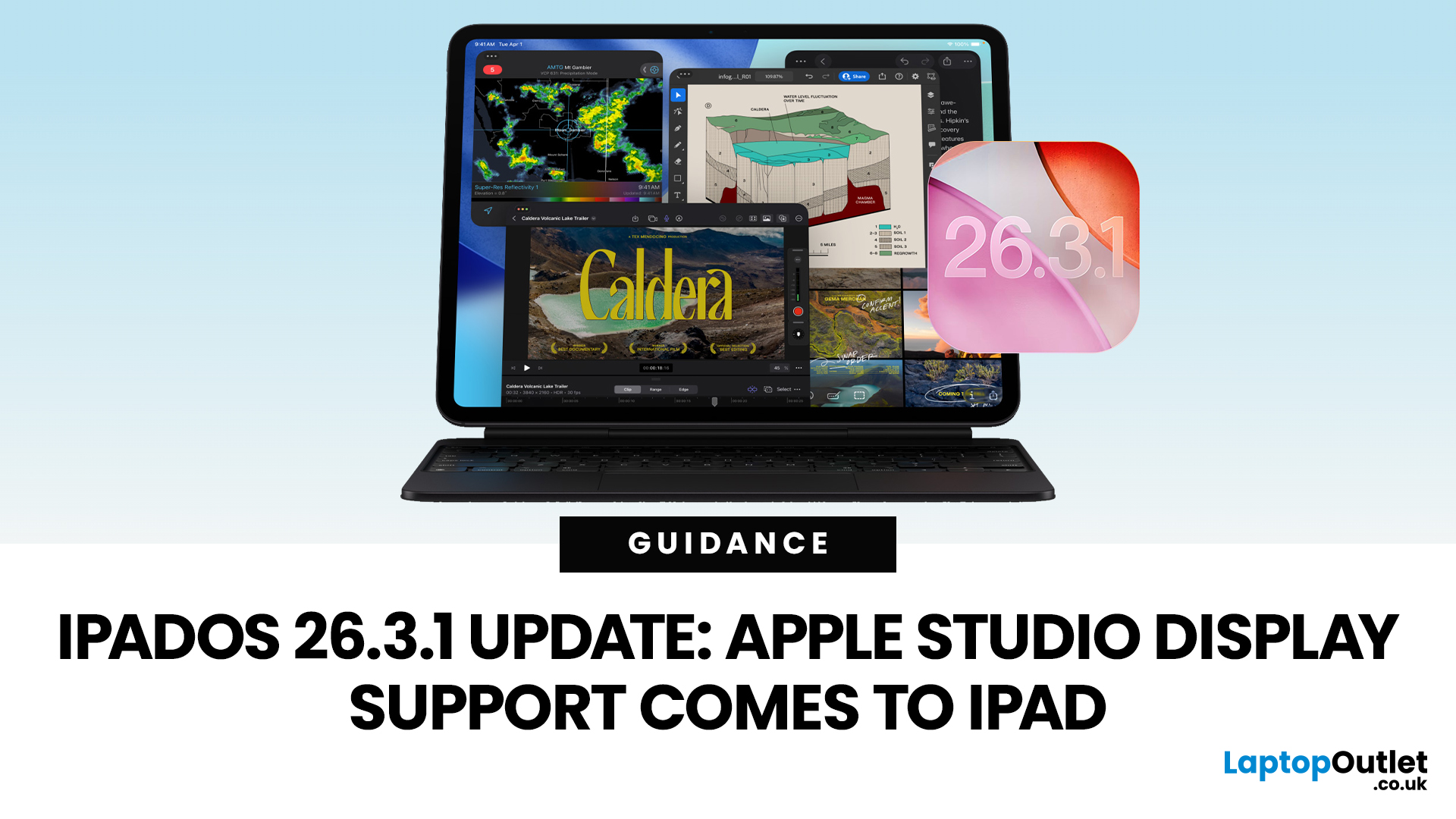
Apple has released the iPadOS 26.3.1 update (build 23D8133) on 4 March 2026, and while it’s a point release, it’s tied to something very tangible: support for Apple’s (new) Studio Display lineup, including Studio Display XDR.
That means, if you use an iPad as part of your desk setup, this is one of those updates that can quietly change your day-to-day. Not with flashy new emoji, but with better compatibility for a serious external monitor.
Below is what’s actually confirmed (and what isn’t), which iPads are included, and what to expect when you plug your iPad into Apple’s Studio Display.
What Apple says is in iPadOS 26.3.1
Apple’s Developer Releases listing confirms:
- iPadOS 26.3.1 (23D8133)
- Release date: 4 March 2026
Apple hasn’t published a public-facing, detailed changelog in the sources available here, and several reports describe the fixes as “unspecified bug fixes” alongside the key compatibility change.
What is clearly and directly supported: Studio Display compatibility now requires iPadOS 26.3.1 or later on specific iPad models.
The headline feature: Studio Display support on iPad
Apple’s Studio Display technical specifications page now lists iPad compatibility and explicitly says Studio Display works with specific iPads running iPadOS 26.3.1 or later.
This matters because Apple’s newer Studio Displays use features and connectivity (including Thunderbolt 5 on the display side) that may require updated OS-level support/handshakes for correct operation. Multiple outlets reporting on 26.3.1 tie the update directly to enabling support for the new Studio Display and Studio Display XDR.
Which iPads are compatible with Studio Display on iPadOS 26.3.1?
According to Apple’s Studio Display tech specs, Studio Display is compatible with the following iPads with iPadOS 26.3.1 or later:
- iPad Pro (M4 and M5)
- iPad Pro 12.9-inch (3rd–6th generation)
- iPad Pro 11-inch (1st–4th generation)
- iPad Air (M2, M3, and M4)
- iPad Air (5th generation)
A practical note about USB-C accessory speeds (important footnote)
Apple also notes that when Studio Display is connected to certain older iPad models (including iPad Pro 12.9-inch 3rd/4th gen, iPad Pro 11-inch 1st/2nd gen, and iPad Air 5th gen), the Studio Display’s USB-C ports deliver USB 2 data transfer speeds. That doesn’t stop the display working, but it can affect connected accessories (like fast external SSDs).
What Studio Display and Studio Display XDR bring to an iPad setup
Studio Display (standard model): the essentials
From Apple’s Studio Display specs, the current Studio Display configuration includes:
- 27-inch 5K Retina (5120×2880)
- 600 nits brightness
- 60Hz refresh rate
- 12MP Center Stage camera
- Six-speaker system with Spatial Audio support
- Two Thunderbolt 5 ports + two USB-C ports
So, with the iPadOS 26.3.1 update in place (and a compatible iPad), the iPad can now plug into Studio Display and use it as part of a proper desk workflow—particularly if you’re using iPadOS 26’s broader external display and multitasking capabilities.
Studio Display XDR: where things get spicy (mini-LED + up to 120Hz)
Apple also introduced Studio Display XDR, described as a new flagship monitor with mini-LED backlighting, very high brightness for HDR, and up to 120Hz depending on the device driving it.
Not every iPad will drive every mode. For example, reporting around the XDR model notes that 120Hz output depends on having sufficiently new hardware (it’s not just “plug it in and voilà”).
What changes for iPad users day-to-day?
If you’re in the UK and using an iPad as a “sort-of laptop” (aka: the kitchen-table office), Studio Display support is mainly about three real-world wins:
- A cleaner, more reliable external display connection
Apple is explicitly gating compatibility behind iPadOS 26.3.1. That strongly suggests 26.3.1 contains the system-level support needed for the new displays. - A proper desk setup with fewer compromises
iPadOS 26 supports external display workflows (including extended desktop-style usage depending on your setup/features). So pairing that with a 27-inch 5K panel is a very “make the iPad your main computer” moment—minus the fan noise. - Better use of Studio Display’s built-in extras (with caveats)
Studio Display includes camera/audio hardware and USB-C ports. Apple’s footnote about USB 2 speeds on some iPads is the key caveat to understand before you start hanging storage and peripherals off the monitor.
How to install iPadOS 26.3.1 (and check you’re on the right version)
Apple’s official steps to update iPadOS are:
- Open Settings
- Tap General
- Tap Software Update
- Tap Download and Install (if available)
If the update doesn’t show up
Apple also documents standard troubleshooting steps if your iPad won’t update—such as deleting a partially downloaded update from iPad Storage and trying again.
How to connect an iPad to Studio Display (what you actually need)
The Studio Display connects to host devices via Thunderbolt/USB-C, and Apple ships it with a Thunderbolt 5 Pro cable (1m) in the box.
For iPad users, the essential checklist is:
- A compatible iPad model (see list above)
- iPadOS 26.3.1 or later
- A USB-C / Thunderbolt connection (using the Studio Display cable or equivalent-quality cable)
- Optional: keyboard, trackpad/mouse if you’re building a desktop-style setup
Once connected, iPadOS 26’s external display features should let you place apps on the external screen and work across both displays (depending on your iPad model and settings).
What about bugs and security fixes?
Here’s the honest version:
- Apple’s Developer listing confirms the release and build number, but does not (in the accessible sources here) provide a detailed public list of fixes for 26.3.1.
- Reports describing 26.3.1 mention bug fixes but often also note they are not specified.
So it’s accurate to say: iPadOS 26.3.1 includes bug fixes, but not accurate to invent a list of which bugs unless Apple publishes them.

The takeaway
The iPadOS 26.3.1 update is a “quietly important” release for iPad owners who use their tablet at a desk. Apple has explicitly positioned iPadOS 26.3.1 or later as a requirement for Studio Display compatibility on a defined set of iPad Pro and iPad Air models.
If Studio Display (or Studio Display XDR) is part of your setup or about to be, this update is the key that makes the pairing officially supported. Everything else in 26.3.1 may be minor, but that one compatibility change is very real, very practical, and very “your iPad just got more desktop-y”.

Quick compatibility FAQ (because everyone asks these)
“Will my iPad work with Studio Display after updating?”
Only if it’s in Apple’s compatibility list and running iPadOS 26.3.1 or later.
“Can I plug an SSD into the Studio Display and use it with iPad?”
Possibly - but note Apple’s footnote: on some iPads, the Studio Display’s USB-C ports are limited to USB 2 data transfer speeds, which is painfully slow for modern external drives.
“Do I get 120Hz on Studio Display XDR with iPad?”
Not necessarily. Coverage of the new XDR model indicates high refresh modes depend on newer hardware that can drive it properly.
Related Articles


Last Updated: May 13, 2025
Know Your iPad Model in Minutes
Need to buy a case, check compatibility, or sell your iPad? First, you need to know exactly which iPad model you have. With so many versions—Pro, Air, Mini, and standard—it can get confusing. Here’s how to quickly identify your iPad.
1. Check in Settings (Easiest Method)
Steps:
- Go to Settings > General > About
- Look for Model Name (e.g. iPad Pro 11-inch (3rd generation))
- Tap Model Number to reveal a code starting with A (e.g. A2270)
- That A-number is the most accurate way to identify your iPad
2. Match Model Number with Apple’s List
Visit Apple’s official iPad identification page and match your A-number to the model and generation.
Examples:
- A2602 = iPad (9th generation)
- A2229 = iPad Pro 12.9-inch (4th generation)
- A2152 = iPad Air (3rd generation)
3. Check the Back of Your iPad (Alternative Method)
If your iPad won’t turn on:
- Flip the iPad over
- Look for small text near the bottom
- Find the Model number (e.g. A1893)
4. Use

Last Updated: May 20, 2025
Slow iPad? Let’s Fix It
Is your iPad lagging, apps taking forever to load, or Safari crawling? Don’t worry—you’re not alone. A slow iPad can result from many things, from background apps to outdated software. Here’s how to figure out what’s slowing your device down and what you can do to speed it up.
Too Many Apps Running in the Background
Your iPad may be multitasking too much.
Fix:
- Double-press the Home button (or swipe up from the bottom on Face ID models)
- Swipe up on open apps to close them
Tip: Don’t keep dozens of apps running—you’ll save RAM and battery
Software Is Out of Date
Older versions of iPadOS may slow down performance or contain bugs.
Fix:
- Go to Settings > General > Software Update
- Install the latest iPadOS update
Storage Is Nearly Full
Lack of storage can cause your iPad to lag.
Fix:
- Go to Settings > General > iPad Storage
- Delete unused apps, photos, or large files
- Use iCloud or external storage if needed
Aim to keep at least 10–15%

Last Updated: September 09, 2025
Let’s be honest: new iPads are expensive. And with Apple releasing updates almost every year, it’s hard to justify the full retail price, especially if you're just after a reliable, good-looking tablet for daily use.
That’s where refurbished iPads come in. These aren’t second-rate gadgets tossed aside; they're professionally restored devices that often look and work like new, but at a fraction of the cost. But the question remains: are refurbished iPads actually worth buying in 2025?
This guide will walk you through everything you need to know from performance and battery health to warranty and compatibility with the latest iPadOS.
Let's dive in.
What is a Refurbished iPad?
A refurbished iPad is a pre-owned device that has been inspected, cleaned, and restored to full working condition. It might have been returned due to a fault (which has now been fixed), or simply because the original buyer changed their mind.
There are two key types:
-
Manufacturer Refurbished iPads: Restored by Apple

Last Updated: October 08, 2025
Choosing the right tablet can be overwhelming, but Apple’s extensive iPad lineup makes it possible to find a model that fits almost any workflow or budget. From students managing coursework to artists creating digital illustrations, and professionals handling demanding tasks, the range of iPads from Apple is built to meet a wide variety of needs.
With options ranging from the compact iPad Mini to the high-performance Apple iPad Pro lineup, including options like the Apple iPad Pro 13, understanding what each model offers is key to making a smart investment.
This guide breaks down powerful and the latest iPads from Apple, comparing performance, features, and value to help you find the best Apple tablet for your daily demands without wasting money on features you won't use.
Top iPads for Students, Artists, and Professionals in 2025
For Students
Apple iPad Air 11 (SKU:MUWG3NF/A)
The Apple iPad Air 11 is an excellent option for students who want performance without the weight or cost of a
Published: November 20, 2025
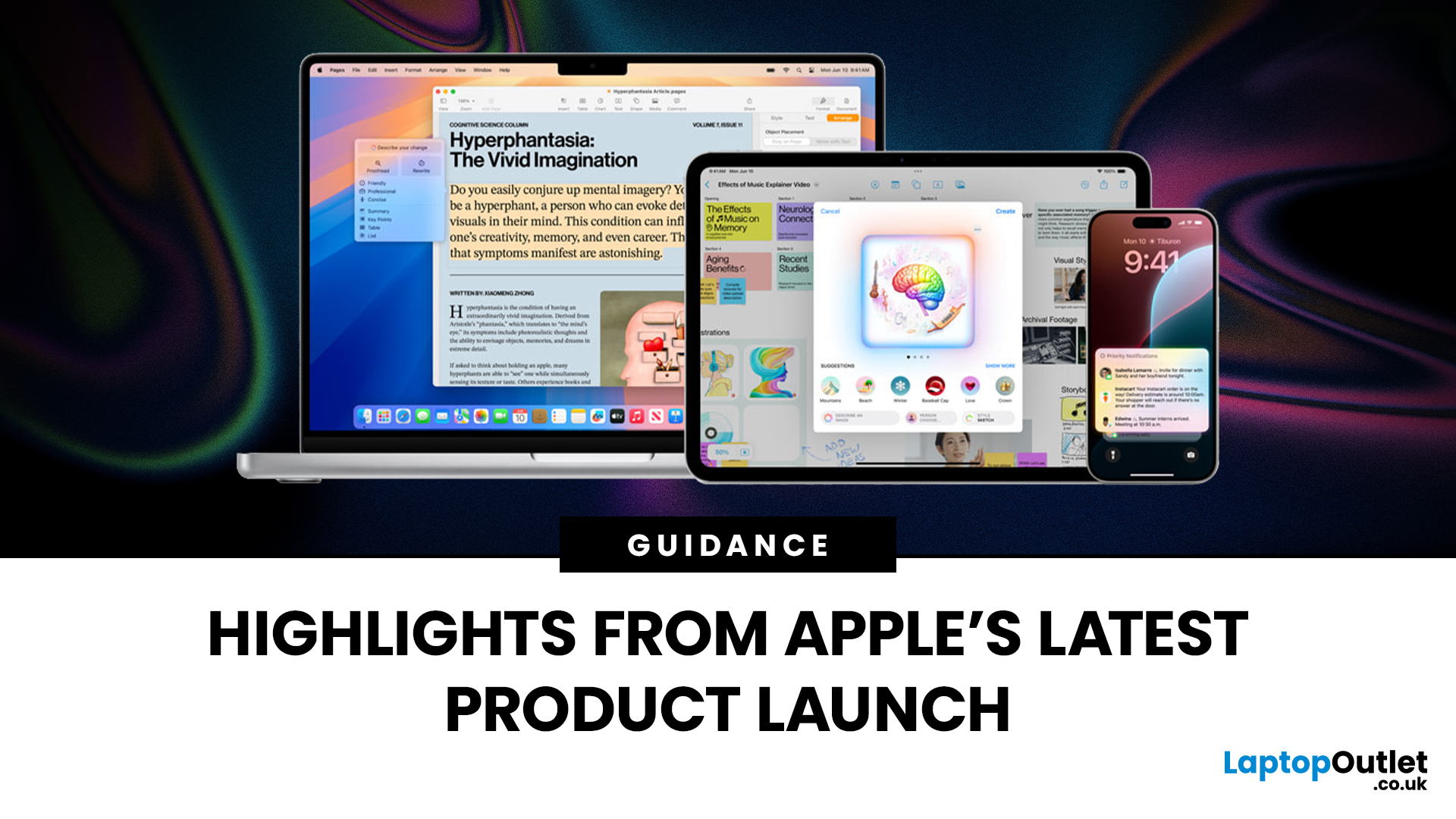
Apple has once again raised the bar with its latest hardware update, unveiling a refreshed line-up including the new Apple MacBook, the iPad Pro, and several other devices. Let’s take a closer look at what’s changed, why it matters, and whether the new Apple MacBook 2025 is worth your attention.
What’s Been Announced?
On 15 October 2025, Apple introduced a suite of devices powered by its latest chip, the Apple M5, including a new 14-inch MacBook Pro, refreshed iPad Pro, and updated mixed-reality headset.
The headline: the new MacBook (and MacBook Pro line) now features the M5 chip built on a 3-nanometre process, offering substantial gains in performance, especially for AI workloads, graphics and battery life.
Meanwhile, the iPad Pro has also seen upgrades, including the M5 chip and enhancements in connectivity, storage, and efficiency.
Why the New Apple MacBook 2025 Matters
Performance and AI
The M5 chip represents a significant step up. According to reports, it delivers AI performance

Last Updated: December 22, 2025
Choosing between Apple’s iPads can feel tricky, especially when both the iPad Air 13-inch and the iPad Pro 13-inch look premium, powerful and remarkably similar at first glance. If you’re weighing up the iPad Air 13 vs iPad Pro 13, this guide is designed to help you make a confident, informed decision based on how you actually plan to use your device.
In this in-depth comparison, we’ll break down performance, display quality, battery life, accessories, and real-world use cases, all with the latest Apple hardware in mind. Whether you’re a student, creative professional, remote worker or casual user, by the end you’ll know exactly which iPad suits you best.
Key Differences Between iPad Air 13-inch and iPad Pro 13-inch
Before diving into individual features, it’s important to understand what separates the Air and Pro lines in Apple’s ecosystem.
Design and Build Quality: Premium Feel Across the Board
Apple doesn’t compromise on build quality, and that’s clear with both models.
Sleek, Lightweight,
Last Updated: February 26, 2026
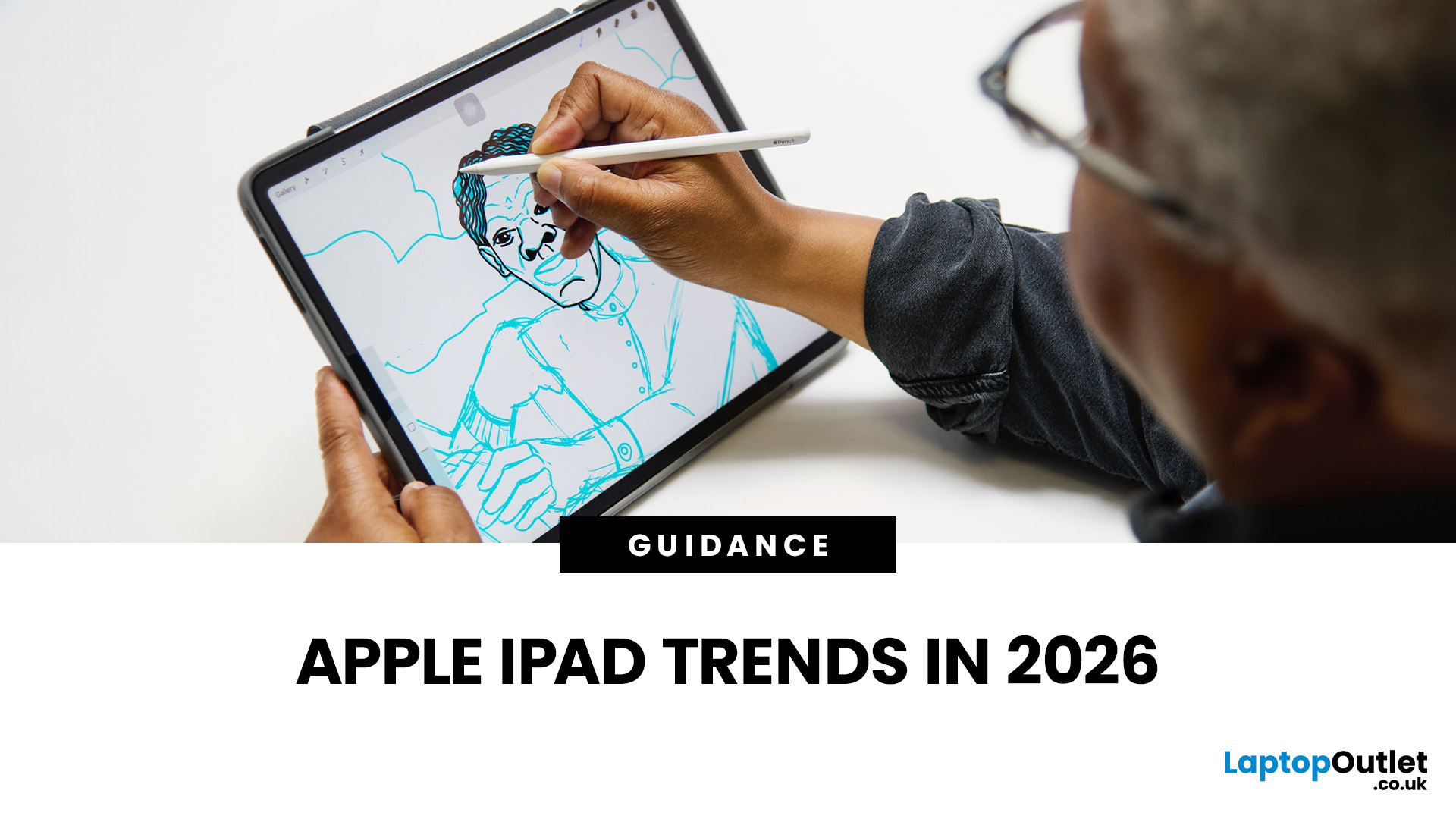
The iPad in 2026 isn’t just a tablet anymore. It’s a content machine, a work-from-anywhere setup, a creative studio, and low-key a laptop replacement for a lot of people in the UK. Apple has quietly (and sometimes not-so-quietly) levelled up the entire iPad lineup, and the Apple iPad trends in 2026 prove one thing: this ecosystem is built for performance, flexibility, and vibes.
This first section breaks down what’s actually new, what’s trending across the latest iPad models, and how Apple is pushing its tablet PCs further into laptop territory, without killing what makes the iPad iconic.
Apple iPad Trends in 2026: The Big Picture
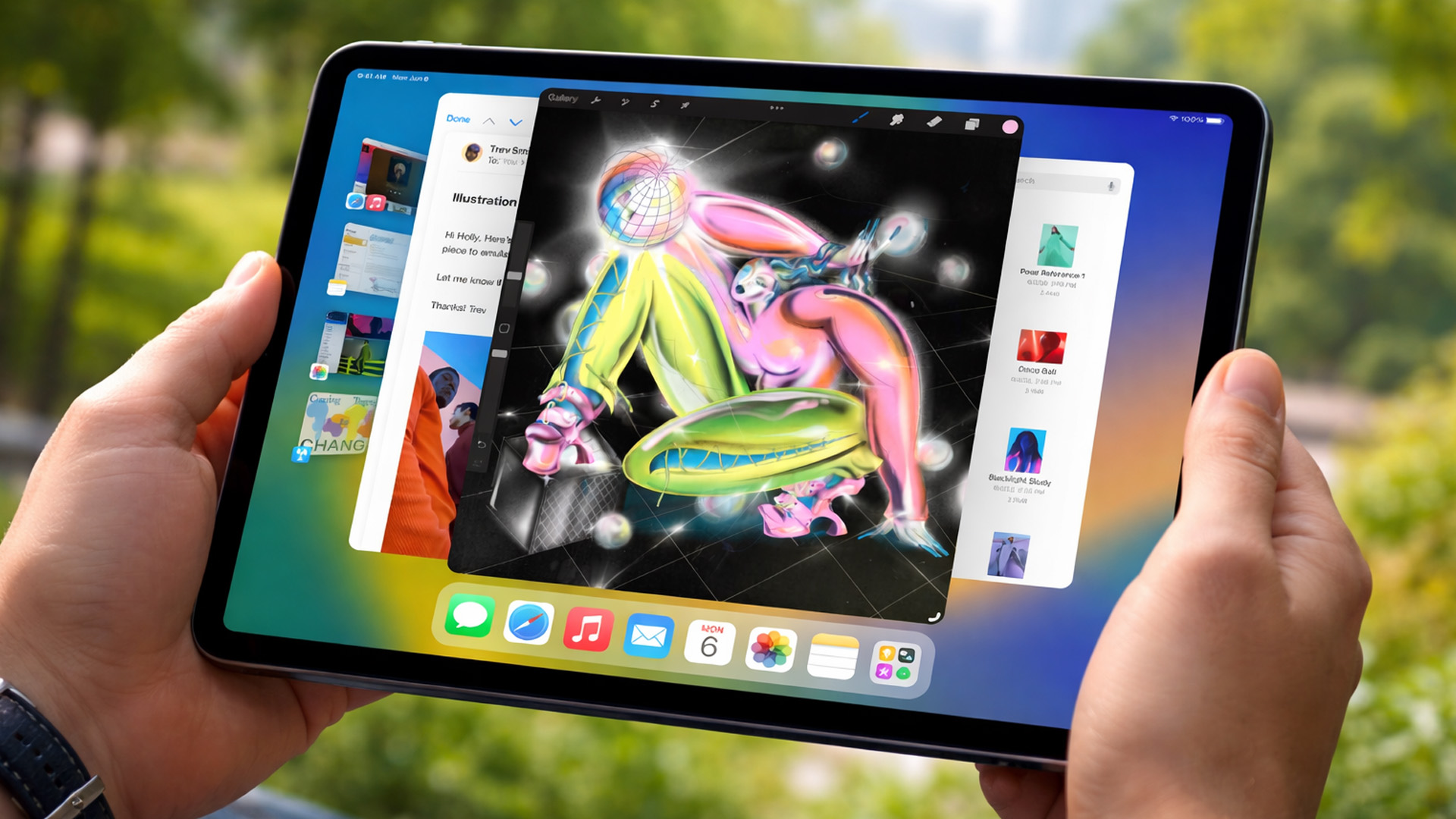
The biggest shift in Apple iPad trends this year isn’t just about faster chips or shinier displays - it’s about positioning. Apple is clearly doubling down on the iPad as a serious productivity and creativity device while still keeping it accessible for everyday users.
In the UK Apple iPad market, buyers are no longer asking “Do I need an iPad?” they’re asking
Published: March 03, 2026
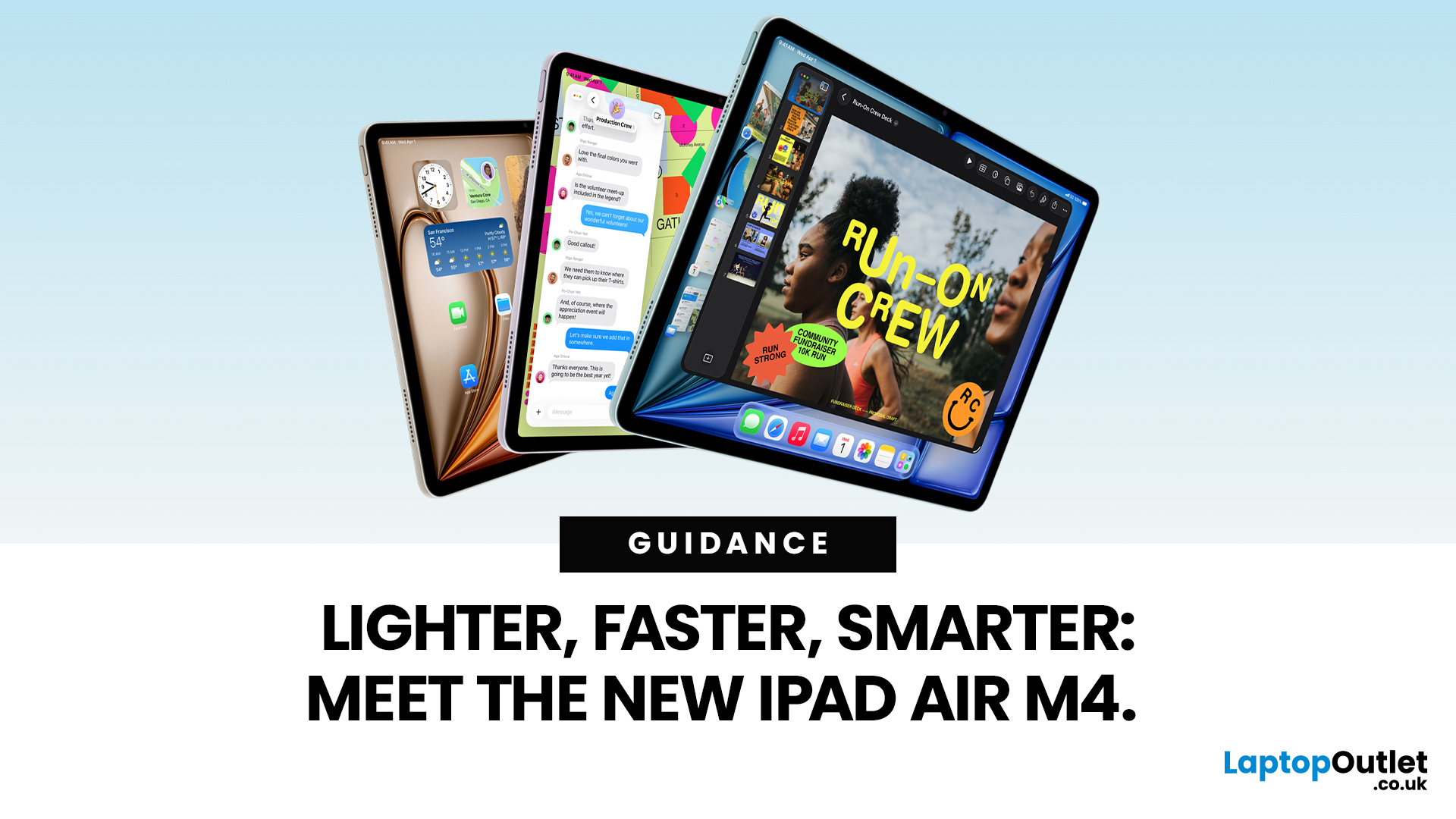
Apple has just unveiled the latest iPad Air, and it's a solid update for anyone in the Apple ecosystem. The iPad Air M4 brings fresh power under the hood without changing much on the outside.
If you're after an Apple tablet that handles work, play, and creativity with ease, this could be your next pick. Let's dive into what makes this device stand out in 2026.
Introducing the iPad Air M4
The new iPad Air comes in two sizes: 11-inch and 13-inch. Both pack the M4 chip, which boosts speed and efficiency. Storage starts at 128GB and goes up to 1TB.
You can choose Wi-Fi only or add cellular for on-the-go use. Colours include space grey, blue, purple, and starlight. This refresh keeps the sleek design fans love, but adds modern tech inside.
Moreover, it supports the latest accessories like the Apple Pencil Pro and Magic Keyboard. These turn the iPad Air M4 into a versatile tool for notes, drawing, or typing.
Powerful Performance with the M4 Chip
At the heart of the iPad Air M4 sits the M4
Published: March 03, 2026
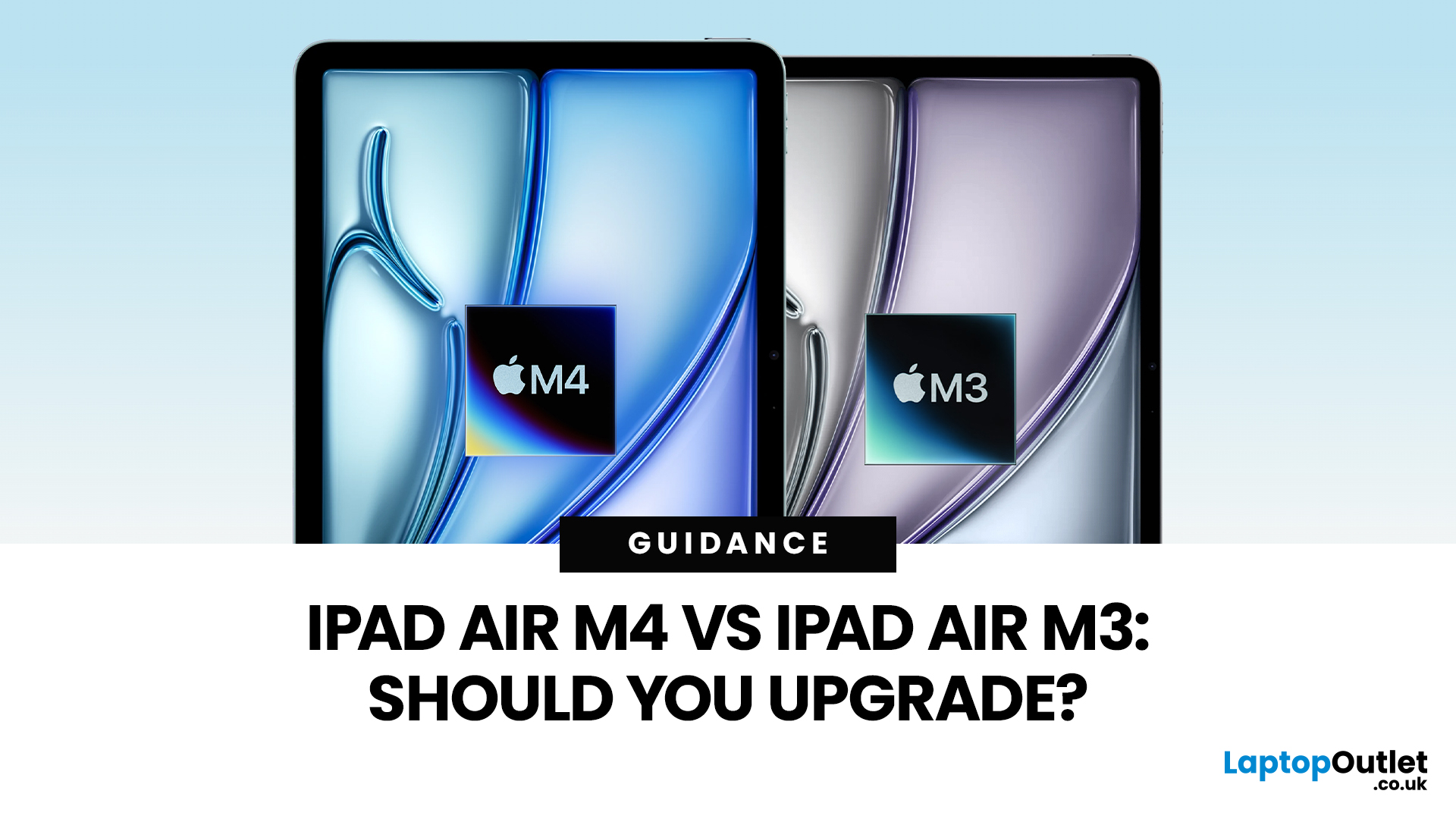
Apple’s iPad Air update for 2026 is exactly what most iPad Air buyers want: the same clean design in 11-inch and 13-inch sizes, but with a much stronger internal platform. The iPad Air M4 moves the Air line onto Apple’s M4 chip, adds more memory, and updates wireless and cellular hardware, so the device stays fast and responsive for longer.
If you are deciding between iPad Air M4 vs M3, the upgrade question is simple: do you need more headroom for heavier apps and multitasking, or is your iPad mainly a media, notes, and browsing device? The M4 model is better on paper and in real use for power tasks, but the M3 model remains “fast enough” for most people, especially if it is discounted.
Quick Answer: Should You Upgrade?
Upgrade to iPad Air M4 if
- You use your iPad like a laptop replacement: Stage Manager, split-screen work, lots of apps open, and big files.
- You do creative work (editing, design, illustration, audio projects), and you want smoother performance under load.
- You plan to

Published: March 04, 2026
Apple’s silicon strategy has reshaped modern computing and the Apple M4 chip is the latest example of how powerful, efficient processors can transform mobile devices. In this article, we explain exactly what the M4 chip is, why it makes the new iPad Air faster, and what this means for everyday users in the UK and beyond.
What Is the Apple M4 Chip?
The Apple M4 chip is the newest generation of Apple silicon designed for tablets and other devices, including the latest iPad Air lineup. It builds on Apple’s previous M-series processors with improvements in CPU performance, graphical power and machine learning capabilities. The M4 integrates multiple central processing cores, a robust graphics unit and a dedicated neural engine into a single, efficient system-on-chip.
Unlike older mobile processors, which may separate components, the M4 combines CPU, GPU, memory controller, neural accelerators and other key functions into a single package. This unified architecture reduces latency and maximises

