


Blog Categories







June 05, 2026

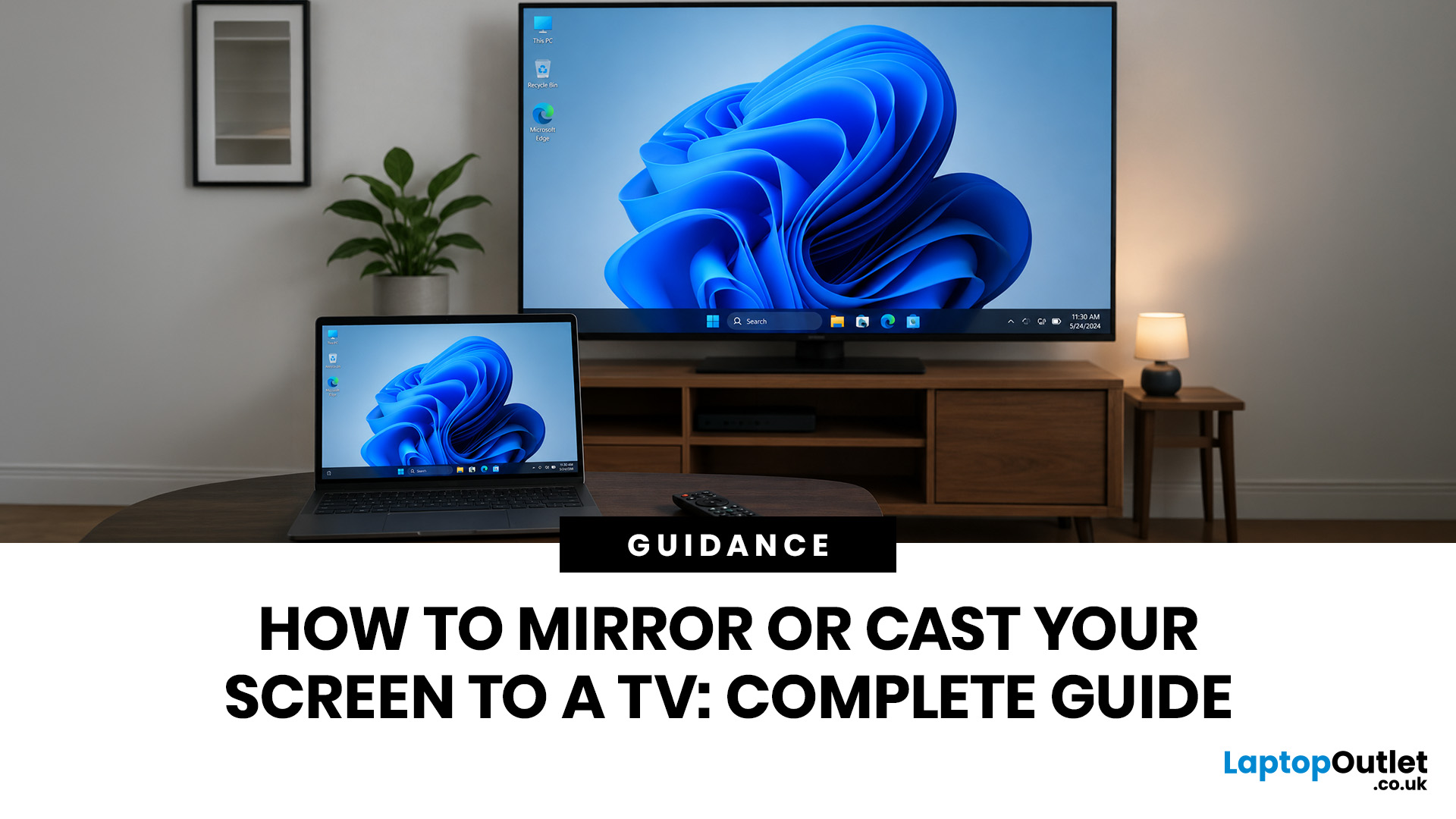
To mirror or cast your screen to a TV, ensure both your device and TV are connected to the same Wi-Fi network. Then, simply use your device's built-in Screen Mirroring or Cast feature (such as AirPlay, Smart View, or Google Cast) and select your TV from the list. For a more stable setup, connect with HDMI, USB-C to HDMI or Lightning to HDMI, depending on your device.
Screen mirroring to TV helps you show a phone, laptop or tablet on a bigger display without handing your device around the room. It is useful for films, photos, work calls, lessons, browsing, gaming and quick family sharing. This guide explains wireless and wired methods for iPhone, iPad, Android, Windows, MacBook and older TVs.
The Best Method by Device: A Quick Glance
The right method depends on your device, TV software and whether you want to show one app or your entire screen. Use this table first.
| Device or setup | Best wireless method | Best wired method | Good for |
|---|---|---|---|
| iPhone or iPad | AirPlay to TV | Lightning or USB-C to HDMI | Photos, |
June 05, 2026
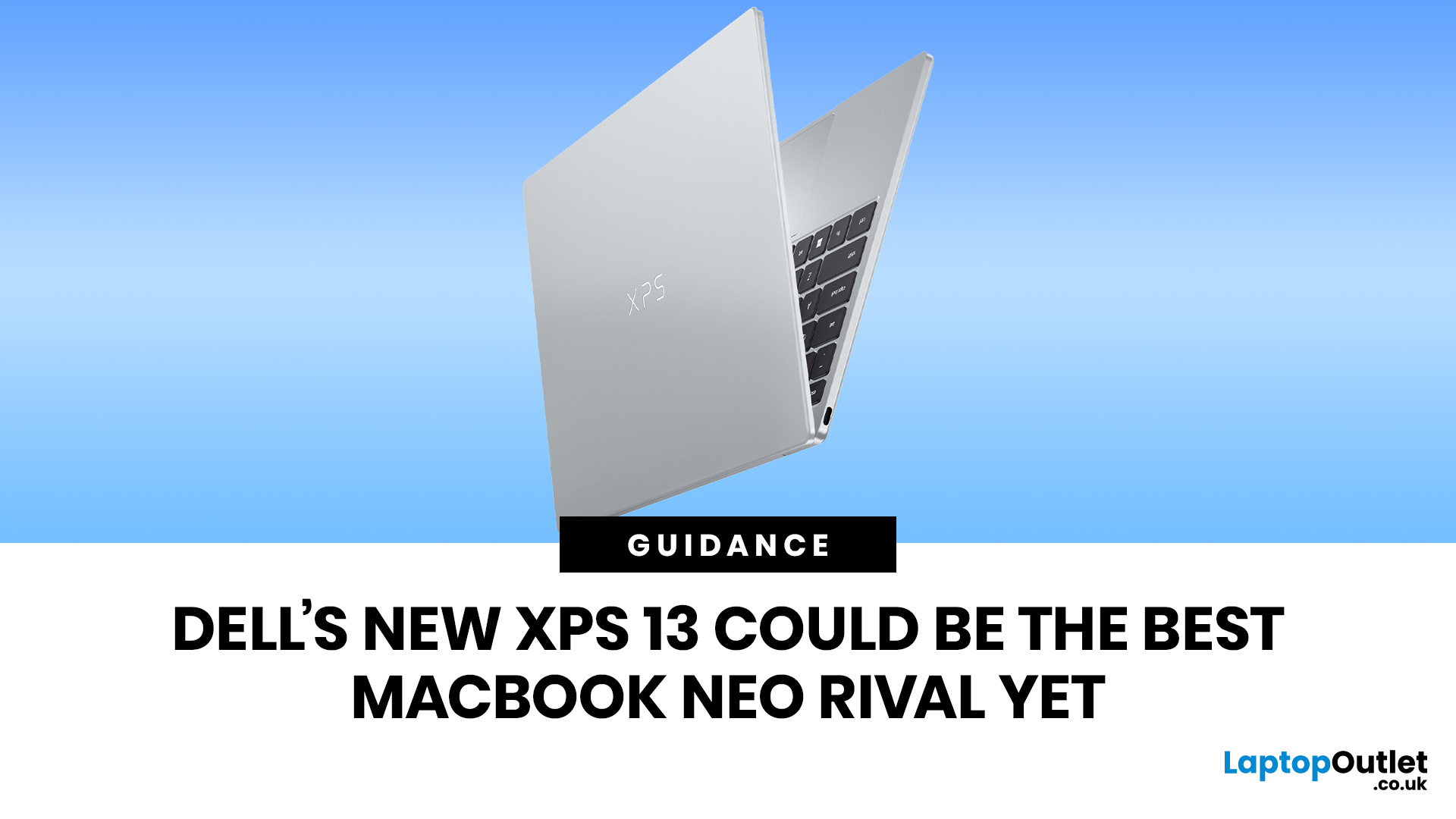
The Dell XPS 13 (2026) could become one of the best MacBook Neo alternatives so far. Starting at ~£599–£699, it undercuts the MacBook Neo's feature set with a touchscreen, backlit keyboard, and higher RAM ceiling. The MacBook Neo starts at £599 in the UK with Apple's A18 Pro chip, strong battery life, and seamless macOS.
If you live in the Windows world and want more flexibility, the XPS 13 is the stronger all-rounder. If you want a polished, simple laptop that just works within the Apple ecosystem, the Neo holds its ground. If you want a detailed comparison between Dell XPS 13 vs MacBook Neo, this guide is for you.
Why This Dell XPS 13 vs MacBook Neo Comparison Matters
The sub-£700 laptop market got interesting in 2026. Apple launched the MacBook Neo in March as its most affordable Mac ever, bringing a proper aluminium laptop to the price point normally dominated by Chromebooks and budget Windows machines. Three months later, Dell fired back with a redesigned XPS 13 that targets the Neo
June 04, 2026
Gaming laptops are built to push frames, load heavy worlds, and keep up with long sessions. But when temperatures climb, performance can take a hit. That is where the right cooling setup matters.
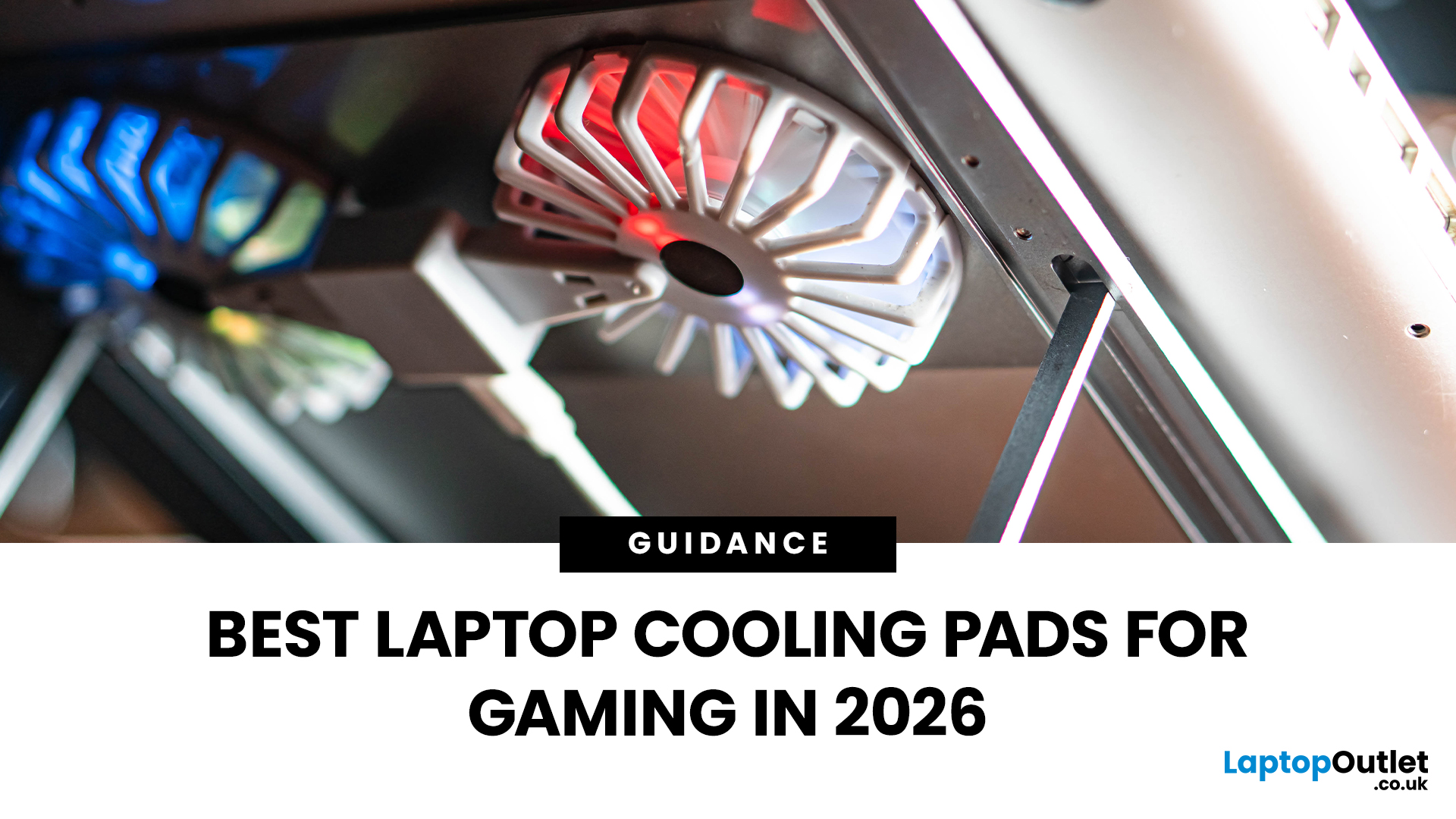
A gaming laptop cooling pad can help improve airflow around your laptop, raise it into a better position, and reduce heat build-up during long gaming sessions. For more advanced setups, PC builders may also look at liquid coolers, CPU coolers, and performance cooling fans to keep gaming rigs running cooler and more consistently.
In this guide, we break down the Best laptop cooling pads UK shoppers should look for in 2026, what features actually matter, and the top cooling picks to upgrade your gaming space.
Why Laptop Cooling Matters for Gaming
Gaming pushes your laptop harder than everyday browsing or streaming. The CPU and GPU work together to deliver smooth frame rates, detailed graphics, and fast response times. More power means more heat.
When your laptop gets too hot, it may reduce performance
June 04, 2026
Big-screen laptops are becoming essential for UK buyers who want more workspace, stronger performance and immersive entertainment in one device. This 2026 guide compares 16-inch, 17-inch and larger laptops for work, gaming, study and creativity, helping you choose the right model for productivity, portability, battery life and long-term value today.
A larger display gives you more room for spreadsheets, timelines, browser tabs, creative apps, coding windows, and immersive games. Whether you are comparing laptops and notebooks, upgrading your work-from-home setup or searching for a capable gaming machine, large screen laptops now offer a much better balance of performance, display quality and portability than older bulky models.
Why Big Screen Laptops are More Popular Than Ever in 2026
Big-screen laptops are having a strong moment because people expect more from one device. A laptop is no longer used only for emails and web browsing. It may now need to handle video calls, AI meeting notes,

June 03, 2026
The Dell XPS 13 has long been one of the most recognisable premium UltraBook for people who want strong performance without carrying a bulky machine. This Dell XPS 13 buying guide breaks down the latest specs, price expectations, design updates, battery life, performance, and practical buying advice for UK students, professionals, remote workers and business users. Whether you need a lightweight Windows laptop for lectures, client meetings, content work, or everyday multitasking, maybe the XPS 13 remains one of the most polished compact laptops in its class.
Why the Dell XPS 13 is Gaining Attention?
The latest XPS 13 continues that idea but makes the range more accessible. Dell’s newest messaging focuses on a thinner, lighter design, a more attainable entry price and a practical feature set for students and everyday users. That matters because premium laptops are no longer only for designers, executives, or high-budget professionals. Many UK buyers now want a device that can handle Microsoft
June 02, 2026
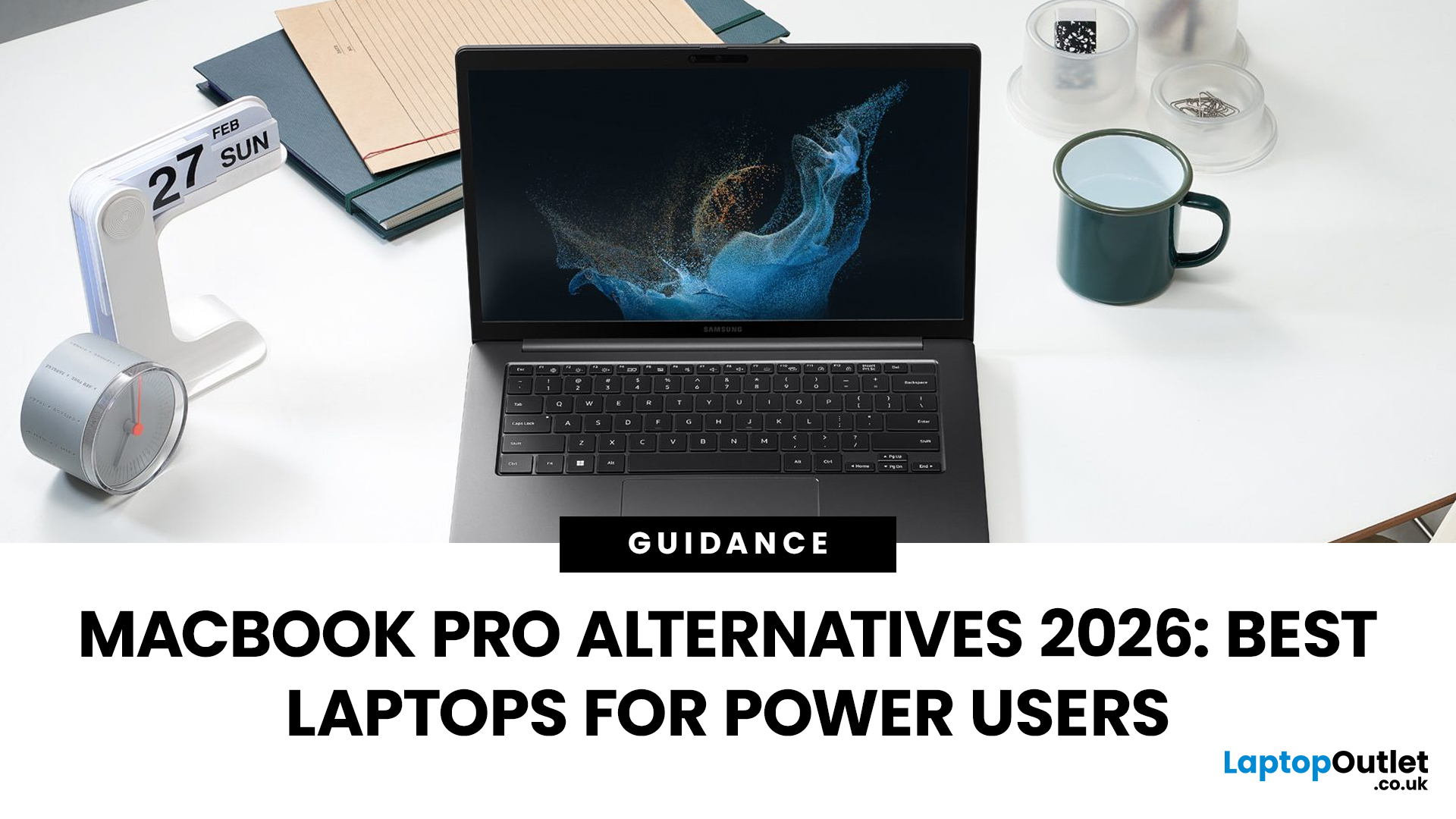
Looking beyond the MacBook Pro in 2026? This guide explores the best high-performance laptop alternatives for creators, developers, designers, and power users who want premium speed, displays, battery life, and value without being locked into Apple’s ecosystem.
If you're searching for the best MacBook Pro alternatives 2026 has to offer, you're not alone. Apple's flagship laptop remains one of the most impressive machines on the market, but it comes at a significant cost, and it isn't the right fit for everyone. Whether you're moving from macOS to Windows, exploring a different ecosystem, or simply want to know your options before spending over £1,500, this guide is for you.
Why Look for MacBook Pro Alternatives in 2026?
Apple's engineering is exceptional, but there are compelling reasons why even dedicated Mac users are reconsidering their options.
Price
The MacBook Pro starts at well over £1,500 in the UK. For many buyers, particularly students, freelancers, and small business owners,
June 04, 2026
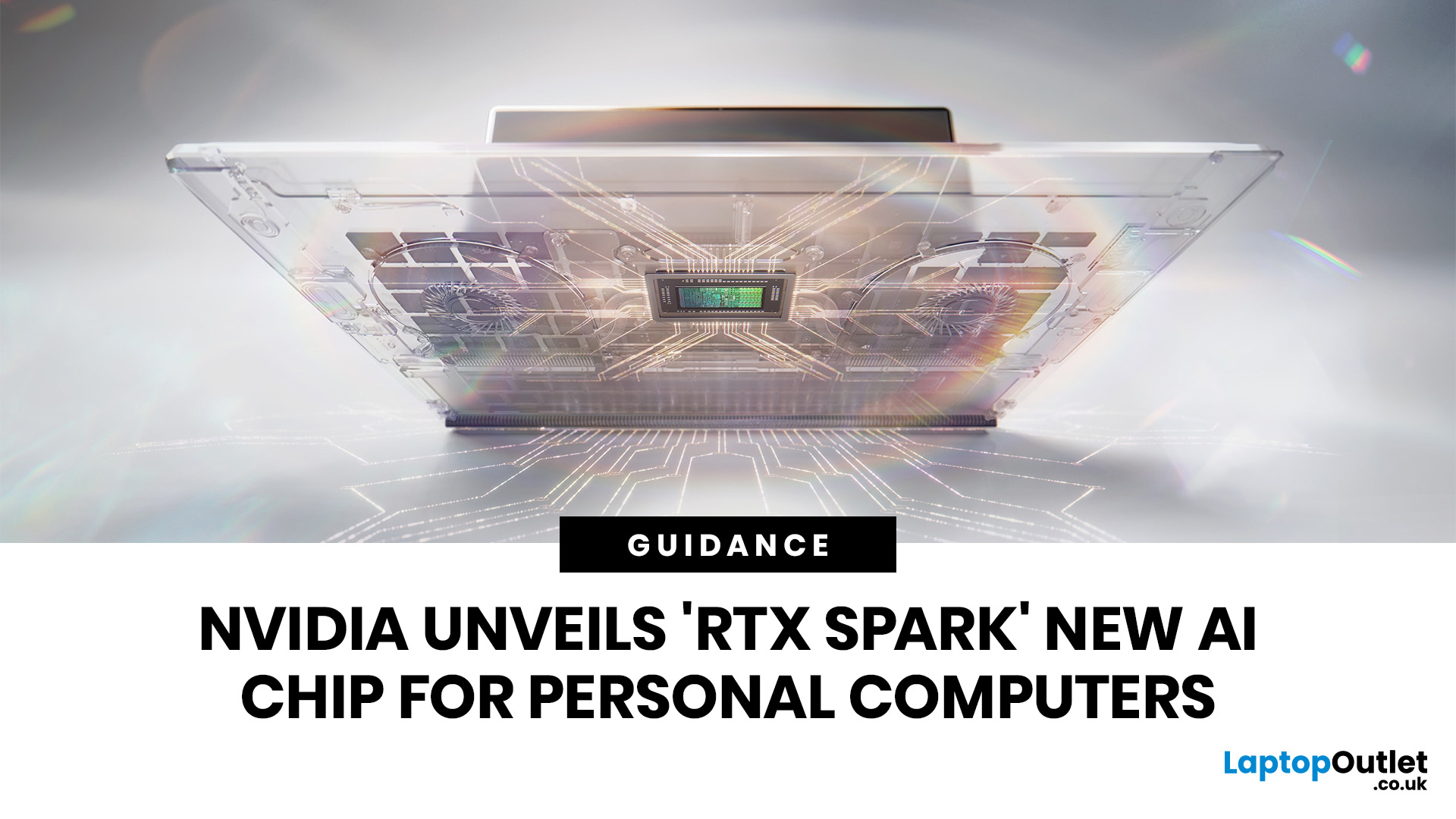
NVIDIA RTX Spark is one of the biggest PC announcements of the AI era. It is NVIDIA’s new AI computing platform for Windows PCs, built to bring local AI agents, RTX graphics, GPU acceleration and high-performance creative work into slim laptops and compact desktop systems.
That matters because personal computing is changing quickly. You are no longer only opening apps, browsing websites or editing documents. The next generation of PCs is being designed to understand your work, run AI models locally, help with coding, create images and videos, search your files, render complex scenes and play demanding games with AI-enhanced graphics.
This is where NVIDIA RTX Spark comes in. According to NVIDIA’s official RTX Spark product page, the platform brings together up to 6,144 Core Blackwell RTX GPUs, a 20-core NVIDIA Grace CPU, up to 128GB unified memory and up to 1 petaflop of AI performance in one platform. In simple words, NVIDIA wants RTX Spark to turn the Windows PC into a personal AI supercomputer.

June 01, 2026
The best microphone for PC depends on how you use it. For work and meetings, choose a noise-reducing USB headset. For gaming and streaming, a headset with a clear boom mic is ideal. For recording vocals or content, prioritise audio clarity and a quiet environment.
| Key features to look for include:
|
Story time: a colleague of mine had just been promoted and was joining one of her first important meetings with senior management. She was prepared, confident, and ready to prove why the decision was the right one. But instead of focusing on her presentation, she spent half the meeting repeating herself because no one could hear her properly.
The problem wasn’t her confidence. It wasn’t her ideas. It was her microphone.
That is exactly why choosing a good microphone for your PC matters. Whether you are attending an important Zoom meeting, streaming,
May 22, 2026
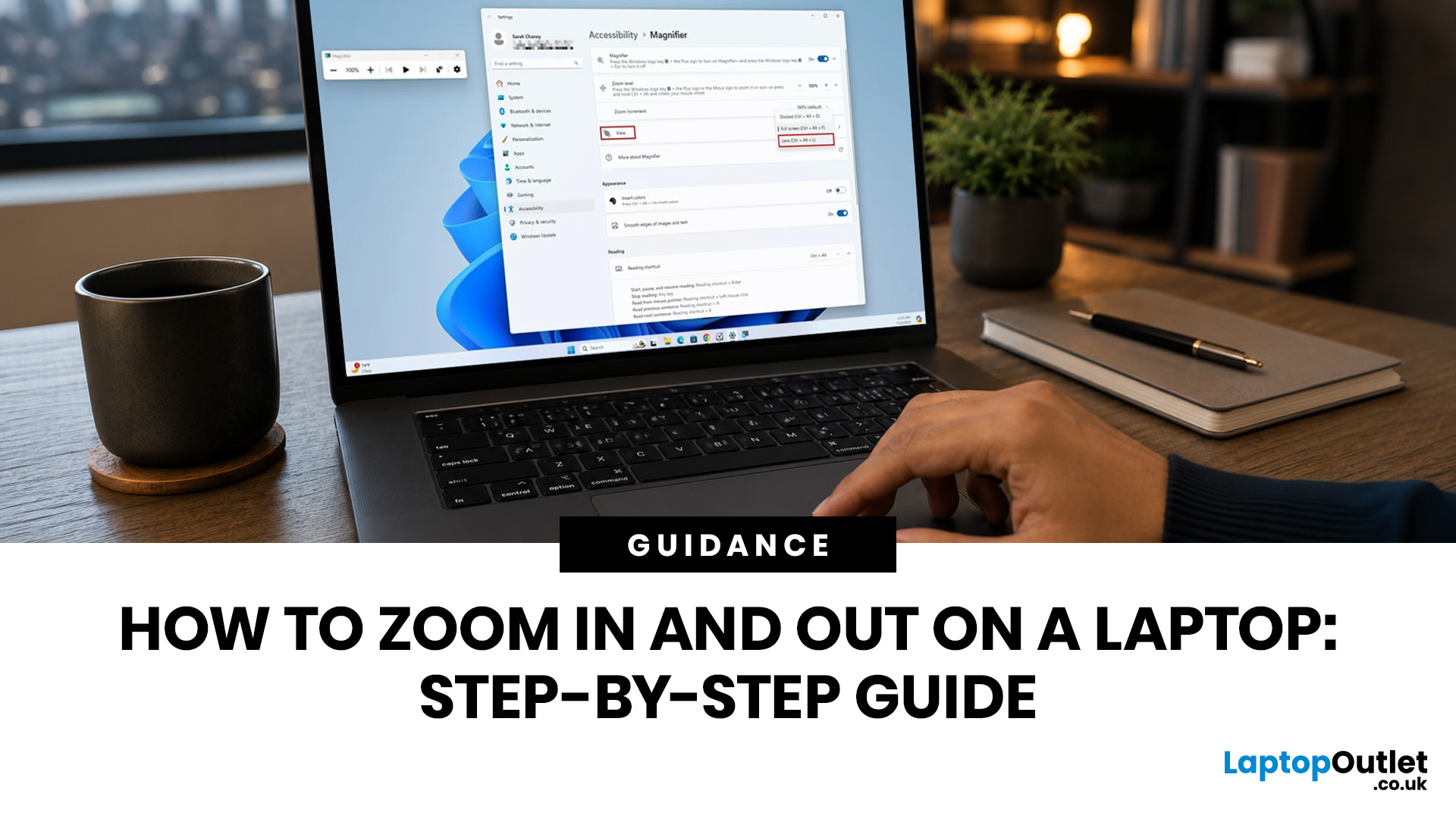
To zoom in and out on a laptop, press Ctrl + + to zoom in and Ctrl + - to zoom out in most browsers, documents, PDFs, pictures, and apps. To reset a webpage to normal size, press Ctrl + 0. If you need to quickly zoom out on a laptop screen, this shortcut is usually the fastest fix.
If the whole Windows screen is zoomed in, press Windows key + Esc to turn off Magnifier. If everything on your laptop still looks too big or too small, open Settings > System > Display and check Scale and Display resolution.
Most laptop Zoom problems happen in one of 5 places: the browser, an app, Windows Magnifier, display scale, or display resolution. The quickest fix depends on what exactly looks too large or too small.
Quick Answer: Laptop Zoom Shortcuts
| WHAT YOU WANT TO DO | SHORTCUT OR SETTING | USE THIS WHEN |
|---|---|---|
| Zoom in on a webpage, document, PDF, or picture | Ctrl + + | Text, images, or details are too small |
| Zoom out on a webpage, document, PDF, or picture | Ctrl + - | A page, file, or app looks too large |
| Reset browser |
May 19, 2026
To fix Bluetooth connection issues on your laptop, start by turning Bluetooth off and on, restarting your laptop, removing the problem device, and pairing it again. If that fails, update or reinstall your Bluetooth driver on Windows, or forget and reconnect the device on macOS.
A “Bluetooth not connecting laptop fix” is one of the most searched tech support queries, and it is easy to see why. One minute your wireless mouse, keyboard, or headphones are working fine, and the next they simply will not pair. It is frustrating, especially when you have work to get done.
The good news? Most Bluetooth issues can be resolved at home without spending a penny. This guide will walk you through every step to get you back online.
Why Is Bluetooth Not Connecting on Your Laptop?
The question “why is my Bluetooth not working” has more than one answer. Bluetooth connection problems can stem from a wide range of causes, both software and hardware related.
The Most Common Causes
- Bluetooth is switched
May 22, 2026
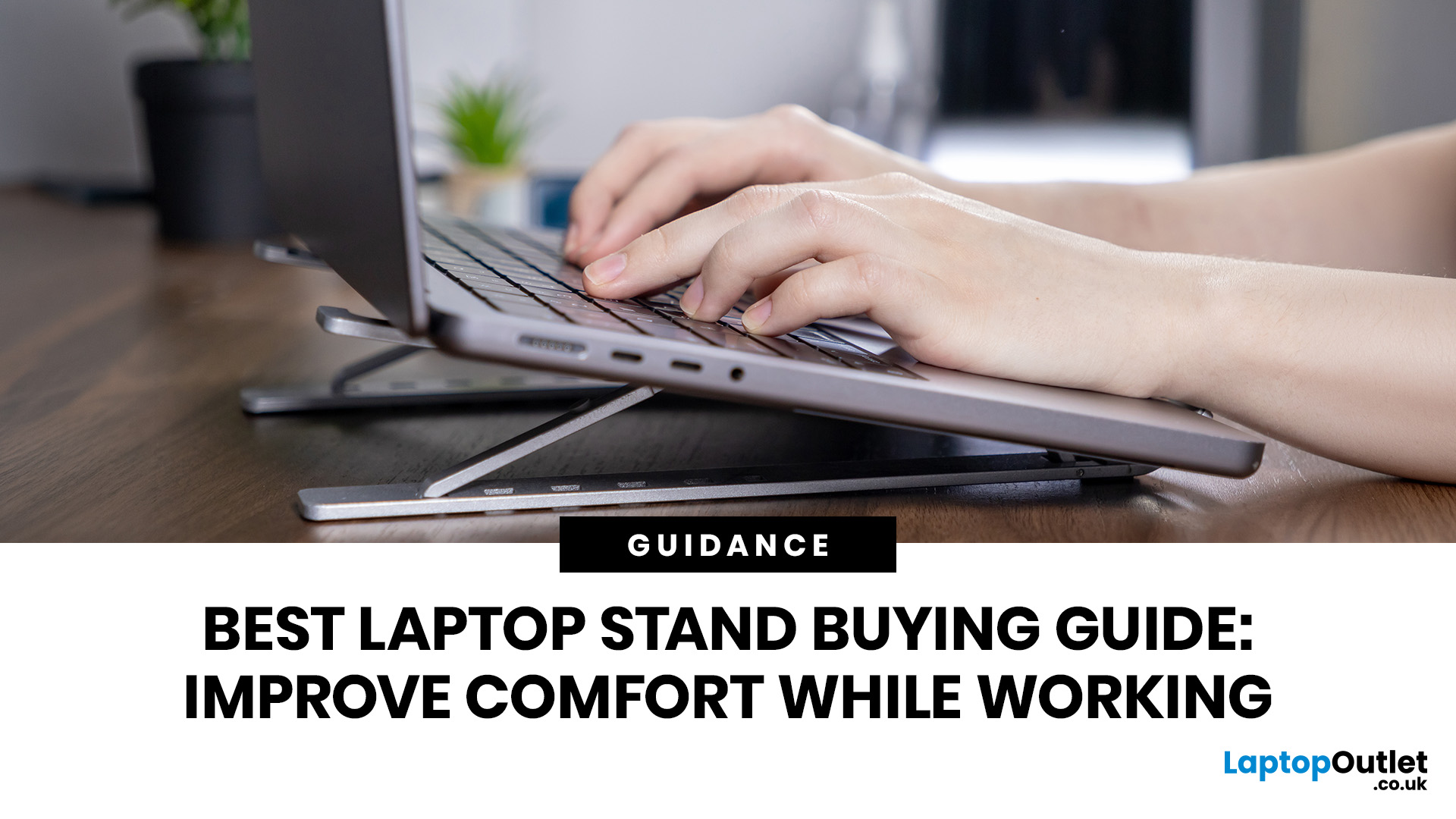
Looking for the best laptop stands UK buyers can choose for better comfort and posture? A good laptop stand raises your screen to a more natural viewing height, helping reduce neck strain, improve desk setup and make long working hours more comfortable. This guide explains how to choose the right laptop stand for desk use, adjustable setups, bed or couch working, travel, standing desks and dual-screen workstations.
A laptop is convenient, portable and easy to use anywhere, but it is not always the most comfortable device for long working hours. When your laptop sits flat on a desk, bed or couch, the screen is usually too low, which can make you bend your neck, hunch your shoulders and sit in an awkward position.
That is where a good laptop stand can make a big difference. Whether you need a laptop stand for desk use, an adjustable laptop stand for flexible working, a portable laptop stand for travel or a laptop table for bed, the right setup can help you work more comfortably every day.
May 18, 2026
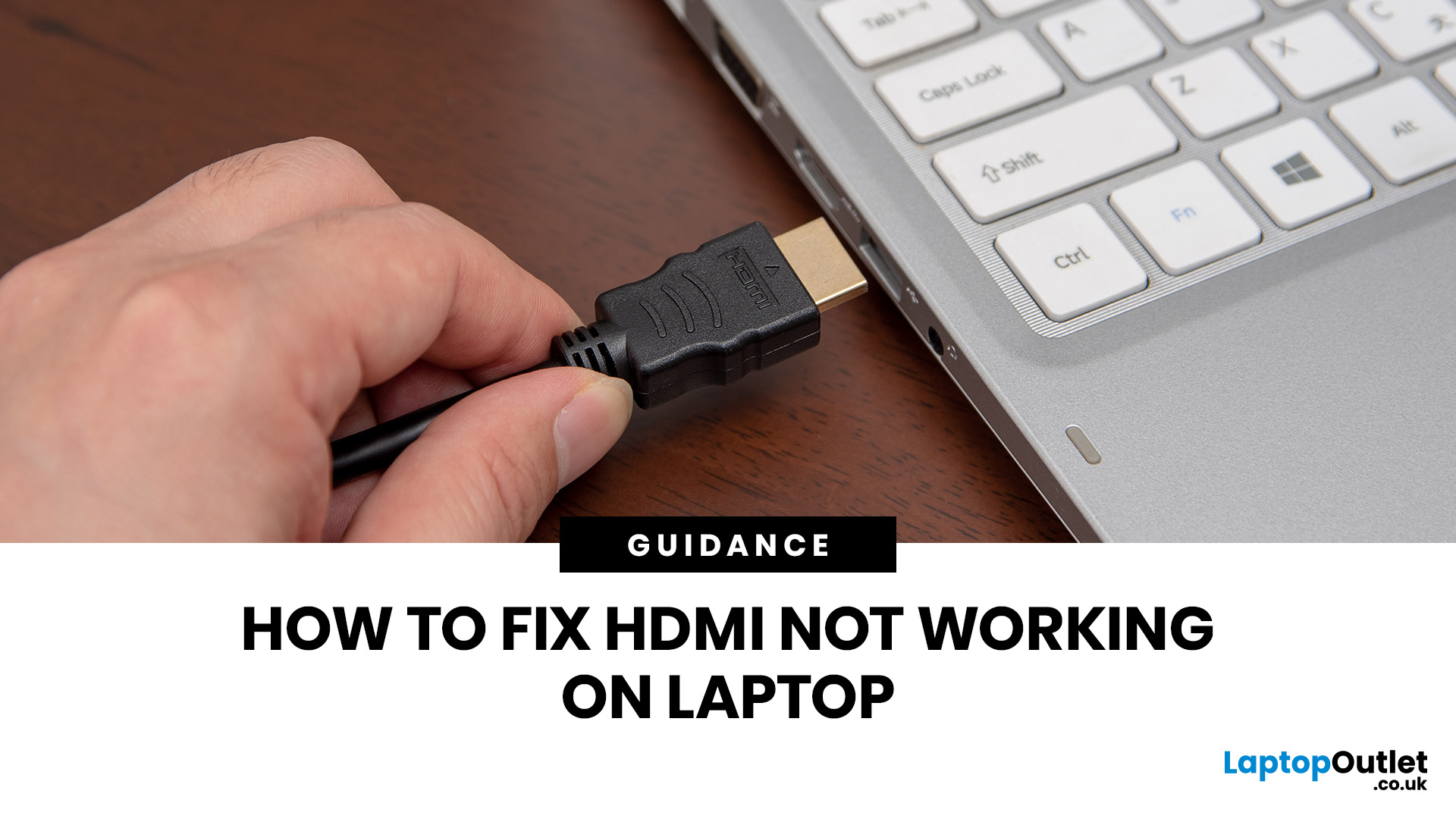
If HDMI is not working on your laptop, start by checking the cable and port for damage, then select the correct input on your monitor or TV. Press Windows + P to choose your display mode. If the screen stays blank, update or reinstall your graphics driver in Device Manager. Most HDMI not working laptop issues are resolved by these steps alone, without needing any specialist help.
There are few things more frustrating than plugging in your HDMI cable and being greeted by a black screen or a "No Signal" message. Whether you are connecting your laptop to a smart TV, an external monitor, or a projector, the issue can almost always be sorted without a trip to a repair shop.
This guide covers most common HDMI not working laptop fixes, from the simplest physical checks right through to driver reinstalls and BIOS settings. Work through the steps in order and you will find your fix quickly.
Why Is Laptop Not Connecting to HDMI?
Before diving into fixes, it helps to understand what causes